
Many email programs are able to automatically sort incoming email messages into subfolders based upon the subject of the email or block receipt of an email message from a specific sender. The instructions below will enable you to filter messages if you have a Gmail address. Setting up the filters requires you to access your Gmail account on a computer. Once setup on a computer, you will be able to see your filtered messages on any device- cell phone, iPad, computer, etc.
Page Contents
Sort Incoming Email
The example below will make a subfolder labelled “Riderwood” (you may use any name of your choice for subfolder) for all messages received from “Chatterwood”.
1. On a computer (cannot use a cell phone or iPad) open Gmail https://mail.google.com/ .
2. Select a message in your inbox for which you want to create a subfolder for future messages. Gmail uses the name label instead of folder or subfolder.
3. Click on ⁞ (More) in upper right corner.
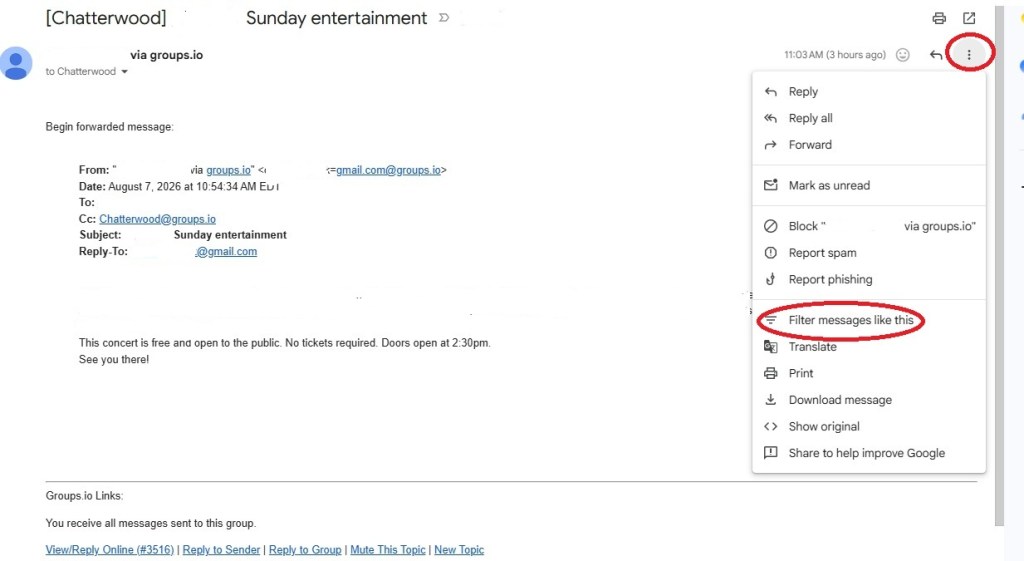
4. A second window will open with a line “Filter messages like this” (see Alternate Sort Incoming Email below if the line “Filter messages like this” does not appear). Click on Filter messages like this.

5. The line “Has the words” should read: list:(<Chatterwood.RWV.groups.io>) . Click on Create filter.
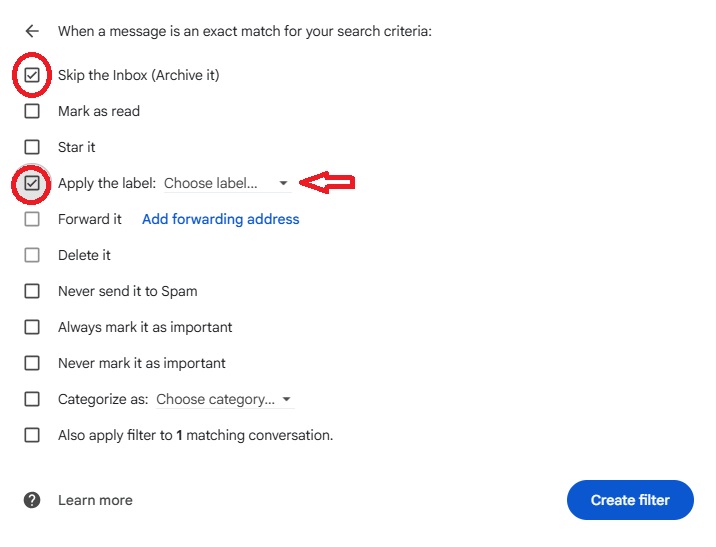
6. Check Skip the Inbox (Archive it) and check Apply the label.
7. Click on Choose label and enter a new label name of your choice (Riderwood in this example). Ignore Nest label under. Then click Create filter in lower right corner.
Alternate Sort Incoming Email
Depending on the email message you select for purpose of sorting, the line “Filter messages like this” may not appear. If you cannot see that line, goto https://mail.google.com/ .
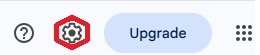
Click on the ⚙ (cog wheel – Settings) which is located on the upper right corner of the page.
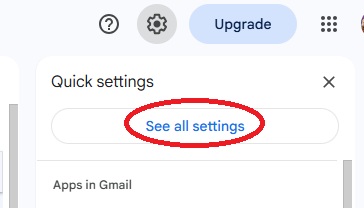
Click on See all settings.
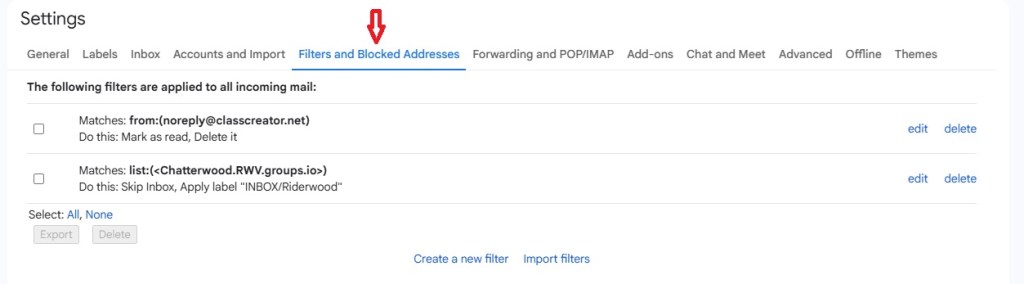
Click on Filters and Blocked Addresses.
You will now see a window similar to the one above instruction #5 above. Type on the line “Has the words”: list:(<Chatterwood.RWV.groups.io>)
Complete the filter by following instructions number 5, 6, and 7 above.
Reading Sorted Messages In A Subfolder
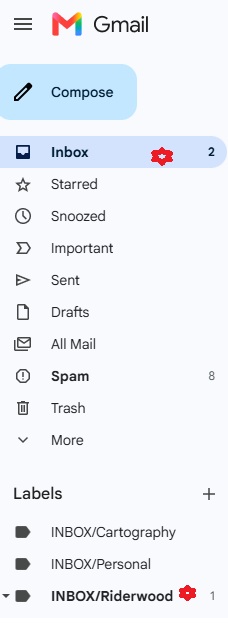
Now that your messages have been sorted, they no longer will appear in your Inbox. You must click on INBOX/Riderwood to view your sorted messages. One of the benefits of skipping the inbox is how easy it is to clear out a subfolder. For example, you receive numerous Chatterwood emails which will now go into a subfolder. Since users can always search the website archives, there is no need to keep these emails indefinitely, which is especially helpful for those with limited cloud storage. Just delete the older messages from the subfolder.
Block Email From A Sender
It is possible to block receipt of an email from a specific sender. The blocked message will automatically go into your spam folder.
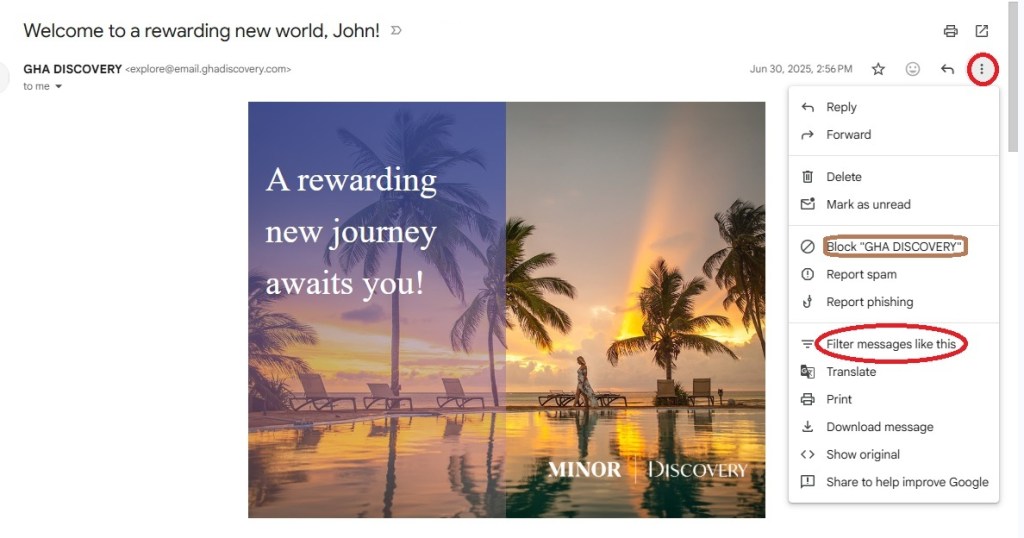
Select a message in your inbox from the individual you want to block. Click on ⁞ (More) in upper right corner. Click on Block <Individual> in window which opened.
Edit A Filter or Blocked Address
The time will come when you will want to edit or delete a filter or a blocked address. To do this you go back to the “Filters and Blocked Addresses” screen as shown in Alternate Sort Incoming Email.
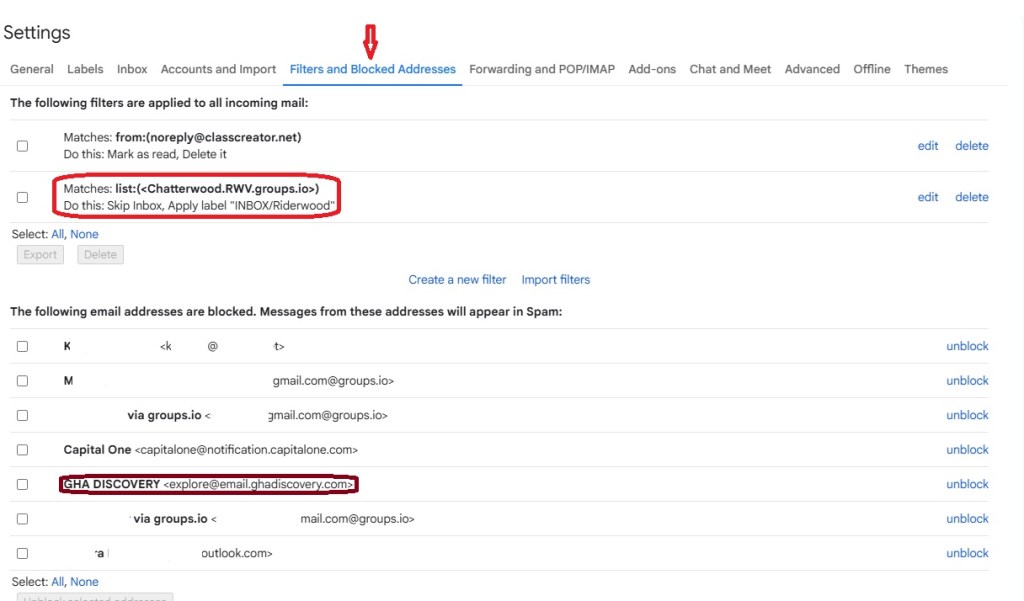
Edit or Unblock the address of interest.
Move A Message To Another Folder
Occasionally you might want to move a message from one folder (or subfolder) into a different folder (or subfolder).
Open the message you wish to move. Hover your cursor over the file icon until Move To appears and then click on it. Then click on destination folder.
