
Thunderbird is a free and open-source software project founded in 2003 to make communicating and collaborating better. It is part of the Mozilla family which also includes the Firefox browser. With Thunderbird you can access all your email messages in one fast app. You may simultaneously download multiple email messages from multiple email accounts. With Thunderbird it is easy to manage all accounts, filter email messages into different folders, and maintain your address book. Thunderbird works with all email accounts including AOL, Comcast, Gmail, Hotmail, Outlook, Verizon, and Yahoo.
Page Contents
Installing Thunderbird
Click here to download the Thunderbird app. Help is available for installing on Windows or on a Mac. Additional support can be found by clicking here.
Using Thunderbird
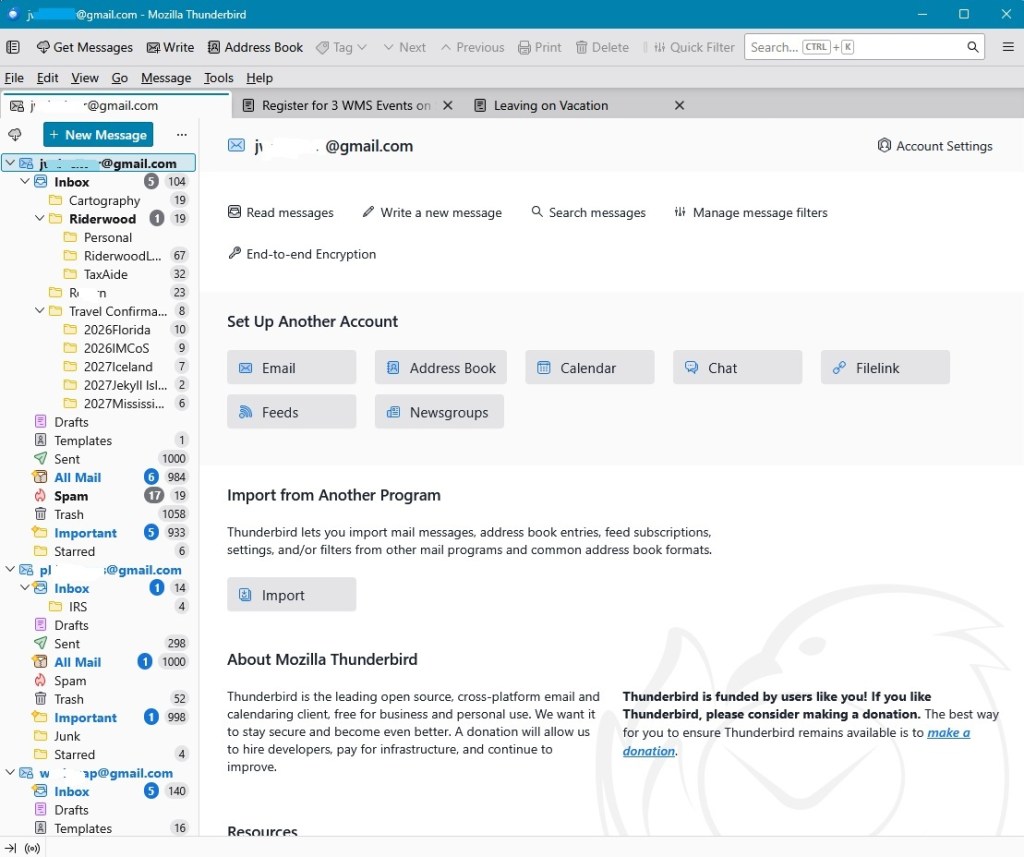
Open Thunderbird and download your messages. Address will automatically be added to your address book if you reply to a message or you can add an address by clicking on Address Book on the top line.
Managing Folders and Subfolders
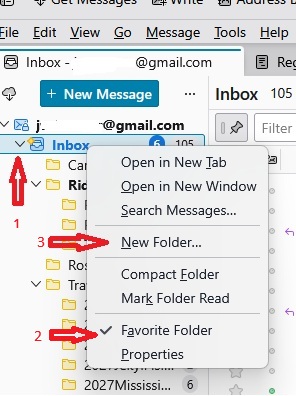
You should create a subfolder before you make any filters. If you highlight a folder (Inbox in this example) by left clicking on it and then right click on it, a new window will open.
Click on Favorite Folder if you want the folder you initially highlighted to be your default folder (i.e. the folder used when, on a web page, you click on send email ).
Click on New Folder to create a subfolder. Give it a name (Riderwood in this example), create it as a subfolder of the Inbox, and then click Create Folder.
Sort Incoming Email
- Click on Tools on the ribbon, and then click on Message Filters.
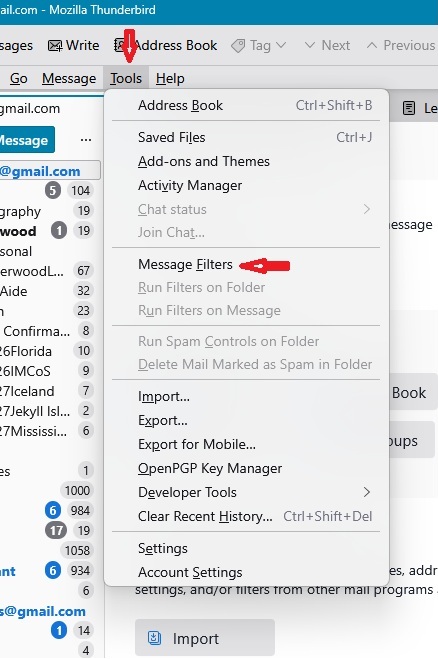
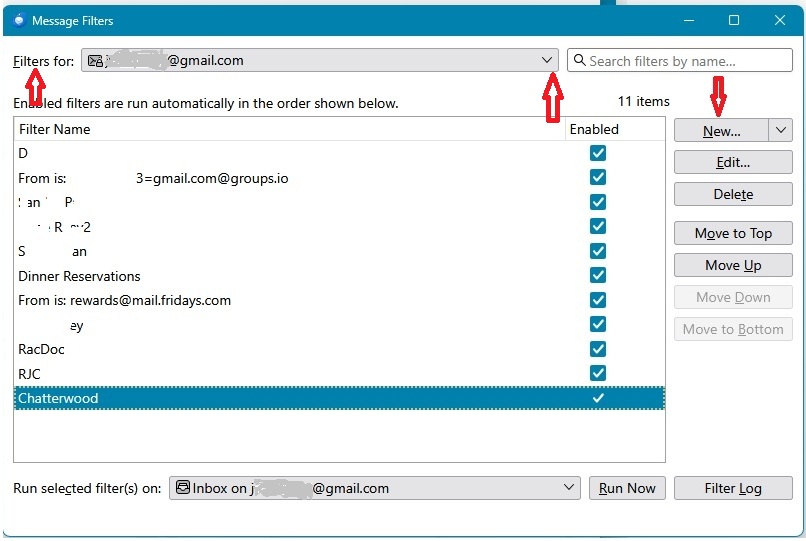
2. Make certain the Filters for (upper left) is for the folder containing the message you want to sort. You can click on ∨ to change the folder. Note that on the right side you can create a New filter, Edit a filter, or Delete a filter. We will click and edit the previously created and highlighted Chatterwood filter.
3. The Filter name is Chatterwood.
Check Manually Run and Getting New Mail.
Match Subject contains [chatterwood].
Move Message to – Riderwood on <my email address>.
Click on OK.

Block Email From A Sender
Look at instruction #1 in Sort Incoming Email in paragraph above. Again, click on Tools on the ribbon, and then click on Message Filters. This time, along the right side of the window, click on New.
*See second paragraph below for additional information about this image.
Select:
Filter name: Type in part of email address before @
Match all of the following: Replace EmailAddress@xxxxxxx.com with the email address you want to block.
Perform these actions:
Move Message to | Spam on <your receiving email address> folder. Click on OK.

Edit A Filter or Blocked Address
*The second image above can also be used to edit a filter. Just highlight a filter (Chatterwood in above example) and then click on Edit in right hand column.
Move A Message To Another Folder

There are two ways to move a message from one folder into another folder. One is to “drag” the message from one folder and “drop” it in another folder. A second way is to:
1) open the message you want to move
2) click on Message in the upper bar
3) click on Move To and then click on Destination Folder