



Each RWV email group has at least two moderators, to work together to manage the email group. A Computer Club administrator can reassign moderators as needed, normally when the leadership for the sponsoring resident group changes.
Page Contents
Moderator Menu
As a moderator, you will have an Admin pull down in the left sidebar when you visit the email group.


- Pending – messages pending approval
- Members – full list of members, with options to filter the list by a number of different attributes and select members to send messages to or remove via an Action pull-down. Clicking on a member name displays additional information about the member.
- Activity – a log of actions by individual members and moderators
- Membership – interfaces to add and remove subscribers
If you have the Modify Group Settings permission, you will see an additional list of Preferences, where you can update the group’s Settings, Cover Photo, Notices, and Member Labels.
Adding New Members
If a new subscriber already subscribes to some RWV.groups.io email group, then they are already a member of Main@RWV.groups.io, so their residency at Riderwood has been confirmed by a Computer Club administrator. If the email address is not already in Main@RWV.groups.io, then during the processing for the new subscription, the new email address will also be moderated to confirm that the subscriber is a Riderwood resident, prior to completing the subscription to your email group.
There are three interfaces available to add new subscribers to your email group. The most straight-forward one is the use of a +subscribe email. You can also do a Direct Add of subscribers from Main to your email group. And finally, you can use the Invite function to send invitation emails to a list of email addresses. None of these interfaces is perfect, but you can try them out, and use each of them as appropriate.
Both the Direct Add and the Invite are accessible via the left sidebar Admin -> Membership tab.
+subscribe
The simplest interface is a subscriber-initiated email to emailgroup+subscribe@RWV.groups.io, where emailgroup is the email identifier for your group. If a PRIVATE group uses this interface as their subscription mechanism, new subscribers will remain in a Pending status until they have been approved by a group moderator. Here are some words you might use to describe how to join your group.
To join our new email group, simply send an email to:
emailgroup+subscribe@RWV.groups.io
Just copy and paste the address into a new email message. No subject or message text is needed, but you can enter those if required by your email tool. Expect a “Confirm” email message from Groups.io, which you need to reply to for your subscription to be activated. Once your subscription has been accepted, you will receive a Welcome email message. For more details about how to best make use of Riderwood resident email groups, visit the Join an RWV Email Group page on RiderwoodLife.com.
You can set up the email address as a link if you would like to, by using the mailto: notation in the link. Your email tool may do this automatically, so try sending the email to yourself first, to see if it is automatically set up as a link, like this one.
MyGroup+subscribe@RWV.groups.io
For most situations, this should bring up the default email tool, but it doesn’t always work if there is not a default email tool specified on the system. So subscribers may have to start a new message and copy and paste the +subscribe email address into the TO: field.
Direct Add
It is also possible to use the Direct Add interface to add subscribers who already have joined Main. This interface lists all the members of Main@RWV.groups.io who are NOT already members of your email group, and you can search for an existing Main subscriber, check their box, and then click the +Add Member button at the bottom of the page to add the checked subscriber to your group. They will receive a “You have been added …” message from Groups.io, as well as your Welcome message, and be added to your email group.
Invite
If you have a list of email addresses that you would like to invite to join your group, you can enter them individually or put them into a text file. Groups.io will send out a simple “Invitation to Join …” message to all of the email addresses, and the subscribers will need to reply in order to join your group. The Invite interface allows you to add text to the basic invitation prior to sending it out to your list of email addresses.
When the invitation is accepted, if the email address is not already in Main@RWV.groups.io, then the address will need to be approved for Riderwood residency prior to joining your group. However, if the subscriber is already in Main@RWV.groups.io and the invitation assumes pre-approval for joining your individual email group, even if it is PRIVATE.
Managing Members
The main tool for managing your members is the Members list. You can –
- Download the list to a .csv file for backup
- Search for specific members based on strings in their Display Name or Email
- Filter by any of a long list of specific conditions, to select a subgroup of Members
- Sort by Display Name, Email, Delivery, or Applied date
- Check the boxes to select individual members in the filtered list, or check the box in the Header, to select all subscribers in the current list
- Choose an Action to apply to all of the selected members.

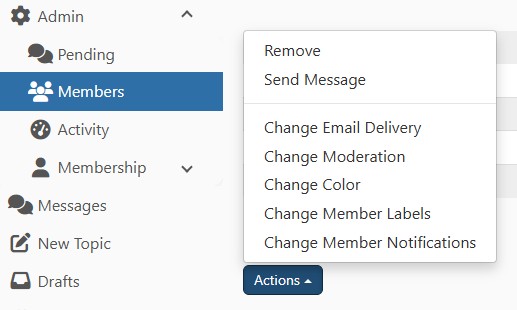
In the Actions pop-up, if you have just basic Moderator permissions, you will see only
RemoveSend Message.
But if you have permission to moderate messages or make use of Member Labels, you will see the additional Actions.
New Member Moderation
If your email group is a PRIVATE group (i.e., Restricted), then new members who use the +subscribe interface remain in a Pending state until a moderator approves them.


All moderators receive an email from groups.io with instructions on how to approve or reject the new member, though you can also approve or reject them via the web interface. This is independent of the residency approval needed to join any RWV.groups.io group (i.e., join the parent group, Main@RWV.groups.io), and occurs AFTER the Main approval occurs.
Moderating Messages
If there are members of your DISCUSSION GROUP whose messages you would like to review prior to having them posted to the full group, you can select Change Moderation from the list of Actions for the selected member in the Members list:

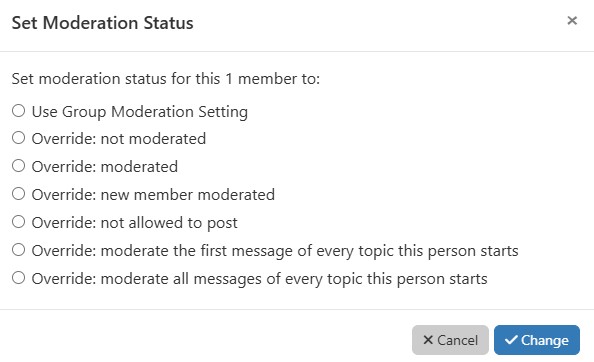
The Group Moderation Setting for all RWV.groups.io email groups is that messages are not moderated, so select one of the Override: options. To unmoderate a member, select Use Group Moderation Setting.
While a member is being moderated, you will receive an email from Groups.io containing the message that needs approval and instructions on how to approve or reject the message.
Lock a Subscriber
To lock a subscriber out of posting to the group, change the moderation to Override: not allowed to post. If the subscriber attempts to post, they will receive a Delivery Failure email, with a “You are not allowed to post to this group.” error message.
Lock a Topic
If a discussion is continuing on a topic that is is inappropriate, you can use the down-arrow in the Messages interface (Topics view) to block further messages about the topic.


To block further discussion on the topic, select Lock Topic.
The Group Reply to Setting is “Reply to Sender” for all email groups except PRIVATE DISCUSSION groups, where it is “Reply to Group.“
+Owner Email
Your email account will receive all emails sent to emailgroup+owner@RWV.groups.io from group members. You can also send messages from the +Owner email address.
Send Email to your Group

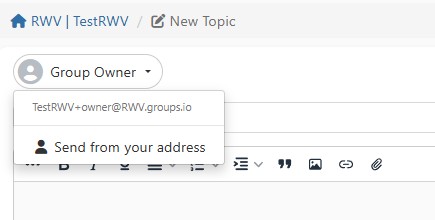
As a moderator, you can use the groups.io web interface to send emails to your whole group, as a new topic or a reply to an existing topic.


For a new Topic, select New Topic from the left sidebar, and then pull down the where it has your name, and select “Send from Group Owner Address.”
To reply to an existing email, locate the email in the Messages archive, and then do the same thing to change the Sender address. There are additional options to choose the recipients.

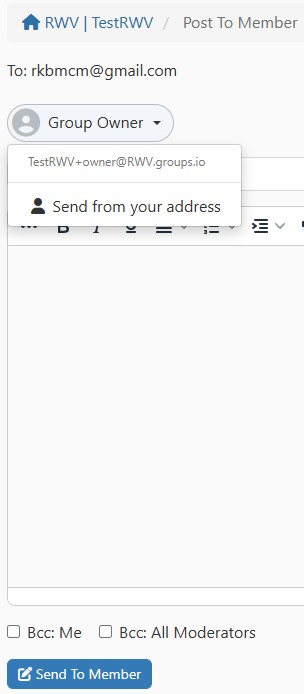
Send Email to Individual Subscribers
When you use the Send Message function for the checked members of your (filtered) Members List, you have a similar pull-down selection to send the email from the Group Owner Address. So you can send email to just one member, or to a subset of the members who meet some filtered criteria. For example, User Labels could be applied as a filter, and then the email would be sent to only the subscribers with that specific User Label.
Backing up your Member List
While it is unlikely that your list of members will “disappear,” you can intermittently use the Download button on the Admin -> Members page to create a .csv file of the information about all of your members as a backup.
Email Group Settings
When a Computer Club admin creates each email group, the Preferences and Settings are established to fit the intended use. Each email group is considered a subgroup in the context of the groups.io administrative interfaces. To learn more about the specific settings, visit RWV.groups.io Group Setup. If your email group has a requirement for different groups.io settings, send an email to groups@riderwoodlife.com to discuss your requirements.
Last updated 7/23/26